In the last chapter you set up your tools and built a throwaway project to find your way around Xcode. Now you'll start something real — an app you'll keep refining over the next few chapters until it actually does something useful.
The app is ShipShape: a small companion that walks an indie developer through the last mile before an App Store release. You tap through a short series of prep steps — capture screenshots, polish your metadata, tune your keywords, run a final QA pass — and the app keeps a history of the launches you've rehearsed. It's the kind of focused, single-purpose app that's perfect for learning SwiftUI, because every screen is simple on its own but the whole thing teaches you layout, navigation, and state.
Before you write a single line, though, you're going to plan. It's tempting to dive straight into code, but ten minutes of planning saves an afternoon of flailing. By the end of this chapter you'll have the entire paged skeleton of ShipShape working — and you'll have learned a surprising amount of Xcode and SwiftUI along the way.
Divide and Conquer
A finished app is a big, intimidating thing. The trick to building one is the oldest trick there is: break it into pieces small enough that each one is obvious. The very first cut you make is between what the user sees and what the app does.
Plenty of developers start by sketching screens — on paper, in a design tool, or in a prototyping app that fakes the basic flow ("tap this button, see that screen"). A sketch you can hand to a friend is worth a lot: if they tap a label thinking it's a button, you've learned something before writing any code. You'll do a lighter version of that here, in two lists.
Listing what the user sees
Here are the screens ShipShape needs, and what's on each one:
- A Welcome screen with some text, an illustration, and a button to begin.
- A title and a row of page numbers sit at the top of the Welcome screen, and a History button sits at the bottom. These same chrome elements appear on the step screens too. The page numbers show there are four numbered pages after Welcome. On the Welcome screen, the first indicator is highlighted.
- Each Step screen (Screenshots, Metadata, Keywords, Final QA) also has a short how-to clip, a countdown timer, a Start / Done button, and a row of five confidence-rating symbols. One of the page numbers is highlighted to show where you are.
- The History screen shows your past prep runs as a list and as a bar chart. It has a title but no page numbers and no History button.
- The Ready to Ship! screen has an illustration, some large celebratory text, and some small gray text underneath. Like History, it has no page numbers and no History button.
In this chapter you'll only stand up the bare bones. Making these screens look like the description — that's later chapters.
Listing what the app does
Now the behavior, starting with the two simplest screens:
- The History and Ready to Ship! screens are modal sheets that slide up over whatever's behind them. Each has a way to dismiss it — a circled "X" or a Continue button.
- On the Welcome and Step screens, the current page's indicator is drawn differently from the rest. Tapping the History button presents the History sheet.
- The Welcome screen's Get Started button advances to the next page.
- On a Step screen, tapping the play button plays that step's how-to clip.
- On a Step screen, tapping Start kicks off a countdown timer and the button's label flips to Done. Ideally Done stays disabled until the timer hits zero. Tapping Done records this step in today's history.
- On a Step screen, tapping one of the five rating symbols colors in that symbol and every symbol before it.
- Tapping Done on the last step presents the Ready to Ship! screen.
- Nice-to-have: tapping a page number jumps to that page; tapping Done advances to the next step; dismissing Ready to Ship! returns you to Welcome.
You'll implement all of this over the next few chapters. But there's one thing that underpins all of it — the page-based structure that lets the user swipe between Welcome and the four steps. That part is genuinely easy in SwiftUI, so you'll do it first, before building any of the real screens.
Separating "what the user sees" from "what the app does" maps neatly onto how SwiftUI itself is organized: views describe appearance, and state plus actions describe behavior. Writing the lists now means that when you start coding, you already know which file each idea belongs in.
Editing a View in the Canvas
Start the project the same way you did in Chapter 1: a new iOS ▸ App project, SwiftUI interface, Swift language. Name it ShipShape. Tick Source Control on the save screen so you get a Git repo from line one. Xcode opens ContentView.swift.
Here are two pieces of SwiftUI vocabulary you'll use forever:
- A view is anything you can see on screen. Bigger views contain smaller subviews.
- A modifier is a method that tweaks a view's appearance or behavior. SwiftUI has a huge number of them.
The single best thing about SwiftUI's editor is that the canvas and the code stay in sync — edit one, and the other updates instantly. Let's prove it.
First, in ContentView.swift, delete the .padding() modifier from the body. It just adds space around the content, and you don't want it right now. While you're at it, delete the Image line too, so body holds just the Text:
struct ContentView: View {
  var body: some View {
    Text("Hello, world!")
  }
}
Selectable mode
Refresh the canvas if it's paused, then click the Selectable button beneath it and double-click the text in the canvas. The matching Text view lights up in the code editor.
A single click selects the view. A double-click drills in and selects the view's content — here, the string "Hello, world!". It's a small distinction that saves you a lot of fumbling once it's muscle memory.
Now go to the code and replace Hello, world! with Welcome. Watch the canvas change to match. A Text view does exactly one thing — it draws a string — which makes it a great scratchpad for sketching out the views you plan to build later.
Xcode offers predictive code completion that works even inside string literals, so as you type "Welcome" you might see ghost text suggesting "Welcome to ShipShape" or similar. Press Esc to dismiss it, or turn the feature off entirely under Settings ▸ Text Editing ▸ Editing.
Stacking Views
You're going to need more than one view to demonstrate paging, and SwiftUI's default way to arrange several views is to stack them. Right-click Text in the editor and choose Embed in VStack. Your code becomes:
VStack {
  Text("Welcome")
}
VStack is a vertical stack — it lays its children out top to bottom, and it's the default when body holds more than one view. To see that, put your cursor on the Text line and press Command-D to duplicate it. You now have two Text views, stacked vertically in the canvas.
Change the V in VStack to H. An HStack arranges its children left to right, so the two views now sit side by side. Press Command-Z to undo — SwiftUI's defaults usually match what you actually want, and vertical is the right call here.
Now make the three views distinct. Change the second Text to Step 1, then duplicate that line (Command-D) and change the third string to Step 2:
VStack {
  Text("Welcome")
  Text("Step 1")
  Text("Step 2")
}
Three separate views — exactly what you need to feed into a TabView.
Using TabView
Here's how little it takes to turn a stack into a paged interface. Change VStack to TabView:
TabView {
  Text("Welcome")
  Text("Step 1")
  Text("Step 2")
}
Your two steps seem to vanish — but they haven't. They're now the second and third tabs of a tab view, and there's an empty tab bar across the bottom of the screen. It's blank because you haven't labeled the tabs yet.
Labeling the tabs
Open the Library (Shift-Command-L or the + in the toolbar), switch to the Modifiers tab, and search for tab. Drag Tab Item onto the first Text line and drop it when a new line opens beneath. Xcode inserts a .tabItem modifier with a placeholder:
Text("Welcome")
  .tabItem { Item Label }
A blue placeholder also appears in the tab bar. Select the Item Label token and replace it so the modifier reads .tabItem { Text("Welcome") }. Rather than do that by hand for each tab, just replace the whole TabView with this:
TabView {
  Text("Welcome")
    .tabItem { Text("Welcome") }
  Text("Step 1")
    .tabItem { Text("Step 1") }
  Text("Step 2")
    .tabItem { Text("Step 2") }
}
Now all three labels show in the tab bar.
Live Preview
You'll want to actually tap these. Click the Live Preview button beneath the canvas, then tap the tab labels — each one switches the view. That's how a tab view normally behaves: a fixed bar of buttons at the bottom, one per section.
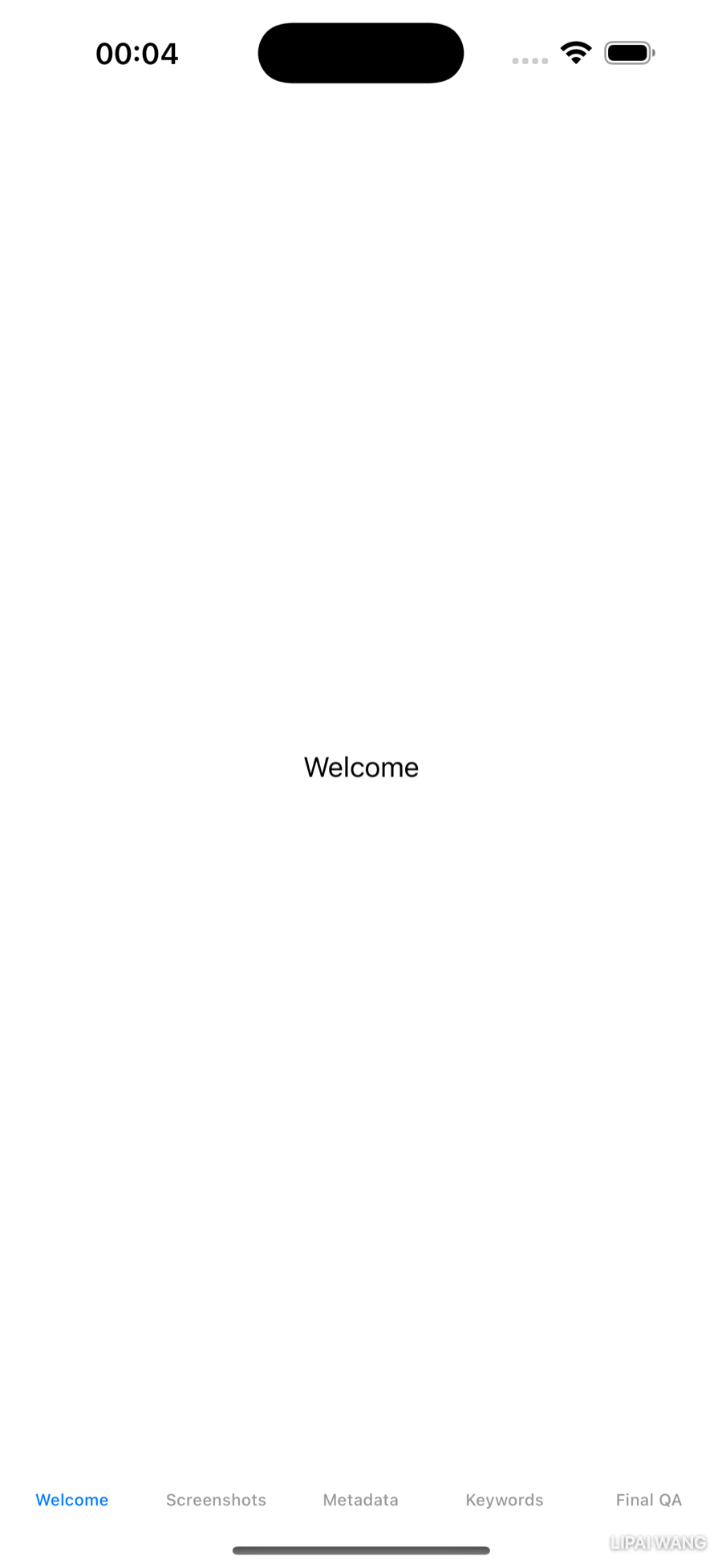
ShipShape doesn't want a tab bar, though. It wants pages you swipe between. One modifier changes everything — add it to the TabView:
.tabViewStyle(PageTabViewStyle())And now the labels are gone. The page style replaces the tab bar with small index dots — but by default they're white on a white background, so you can't see them. Make them visible by adding another modifier right below:
.indexViewStyle(
  PageIndexViewStyle(backgroundDisplayMode: .always))
Now the dots show up. In Live Preview, swipe left and right — each page snaps into place as you let go. That's the whole paging mechanic, and you wrote essentially no code to get it.
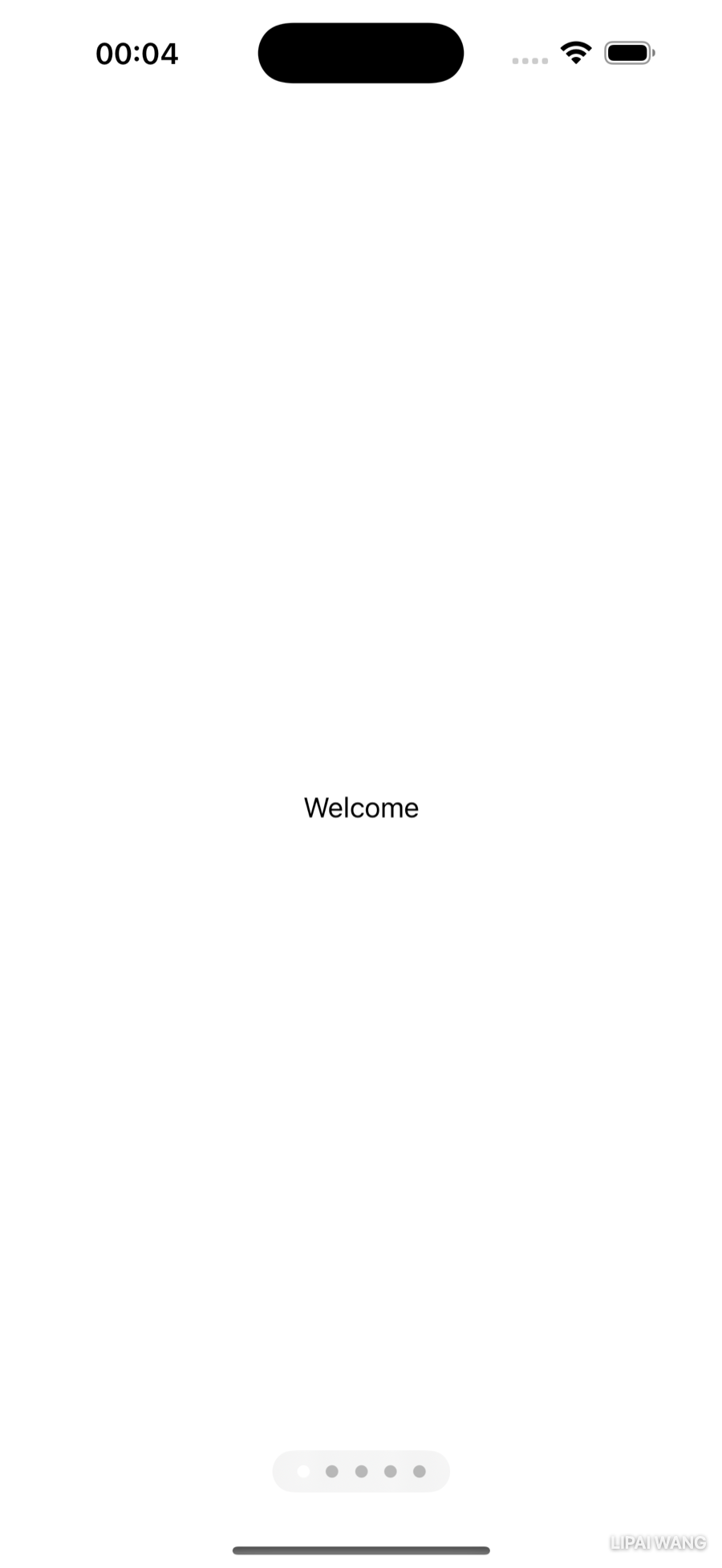
You won't be using tabItem labels for ShipShape, so delete all three. The inside of the TabView is back to three plain Text views:
TabView {
  Text("Welcome")
  Text("Step 1")
  Text("Step 2")
}TabView wears two hatsThe same TabView can be a bottom tab bar or a swipeable page controller — the only difference is the .tabViewStyle you give it. Leave it off for tabs; add PageTabViewStyle() for pages. One view, two completely different navigation patterns.
Mini-exercise
Before moving on, experiment with PageIndexViewStyle(backgroundDisplayMode:). Try .always, .interactive, and .automatic in turn and watch the index dots in Live Preview. Which one hides the dots until you start swiping? (Put .always back when you're done — you'll change this whole section in a moment anyway.)
Real Screens in Their Own Files
Plain Text got the paging working, but the pages should be actual Welcome and Step screens. SwiftUI encourages you to build each screen as its own small view in its own file — the same "don't repeat yourself" instinct you'd apply to functions. Small subviews are easier to read, and the compiler optimizes them into efficient machine code, so there's no performance cost to being tidy.
Select ContentView.swift in the Project navigator and create a new SwiftUI View file named WelcomeView.swift. Then create another named StepView.swift. Your navigator now has three view files.
You'll add several more screens later, so group these together now. Hold Command and select all three view files, right-click, and choose New Group from Selection. Name the group Views.
A group in the Project navigator corresponds to an actual folder on disk — Xcode works directly with Finder to keep them in sync. Organizing your project in Xcode organizes it in Finder at the same time.
Now wire the new views into ContentView, replacing the first two Text views:
TabView {
  WelcomeView()   // was Text("Welcome")
  StepView()      // was Text("Step 1")
  Text("Step 2")
}A View is a struct — a complex type that bundles properties and methods, like a class but without inheritance. If a struct has no properties left uninitialized, Swift gives it a free default initializer, which is why WelcomeView() just works: those empty parentheses create an instance of the view.
Passing Parameters
ShipShape uses one StepView to display four different steps, so the view needs a way to know which step it's showing. The answer is to pass it an index.
First it needs some data to index into. In StepView.swift, add two arrays at the top of the struct, just above var body:
let clipNames = ["screenshots", "metadata", "keywords", "final-qa"]
let stepNames = ["Screenshots", "Metadata", "Keywords", "Final QA"]An array is an ordered collection of values that are all the same type. Both arrays here hold Strings. The clipNames are lowercase file-style names (they'll match how-to clip files later); the stepNames are what the user reads, so they get proper capitalization and spaces.
Next, still inside StepView and above var body, declare the property that says which step this is:
let index: IntThat's a constant integer named index. (let makes a constant; var makes a variable — Swift insists you choose.) The moment you add it, Xcode complains: the #Preview at the bottom now calls StepView() with no index.
Click the red error to expand it. Xcode often suggests a fix, and here its suggestion is right — click Fix and it fills in the missing parameter. You're left with a grayed-out Int placeholder; click it to make it editable and type 0:
StepView(index: 0)Like C, Java, JavaScript, and most of their relatives, Swift arrays are zero-indexed: the first element is at index 0, the second at 1, and so on. stepNames[0] is "Screenshots".
Now use index to show the right name. Change the placeholder Text in StepView's body to:
Text(stepNames[index])Back in ContentView.swift, the same missing-argument error appears on the StepView() call inside the TabView. Fix it the same way — but what value should index be?
Looping With ForEach
You could hard-code StepView(index: 0), then copy-paste three more lines for indexes 1, 2, and 3. But four near-identical lines is exactly the kind of repetition a loop exists to kill. Replace the second and third lines inside the TabView with:
TabView {
  WelcomeView()
  ForEach(0 ..< 4) { index in
    StepView(index: index)
  }
}
ForEach walks the range 0 ..< 4 — that ..< is the half-open range operator, so it includes 0 but stops before 4. Each pass binds the current number to index and builds a StepView for it: one view each for 0, 1, 2, and 3. Four steps, three lines, zero copy-paste.
The loop variable name is yours to choose — this is identical:
ForEach(0 ..< 4) { number in
  StepView(index: number)
}
Exploring the documentation
This is a good moment to meet Xcode's built-in documentation. Hold Option and click ForEach to pop up its Quick Help. Scroll to the bottom and click Open in Developer Documentation for the full reference, which you can also open in the Quick Help inspector.
While you're there, type range into the documentation's search field and open the suggested Range page. Notice the navigator hasn't followed you — right-click the page and choose Reveal in Navigator to see where Range lives: in the Swift Standard Library, under Collections, alongside Arrays, Sets, and Strides. Poking around nearby is a genuinely good way to discover better tools when you're stuck. The docs describe Range as "a half-open interval from a lower bound up to, but not including, an upper bound" — exactly the behavior you just relied on. Close the documentation window when you're done.
Dropping the index dots
ShipShape won't show index dots, so replace both style modifiers:
.tabViewStyle(PageTabViewStyle())
.indexViewStyle(
  PageIndexViewStyle(backgroundDisplayMode: .always))
with a single modifier that turns the dots off entirely:
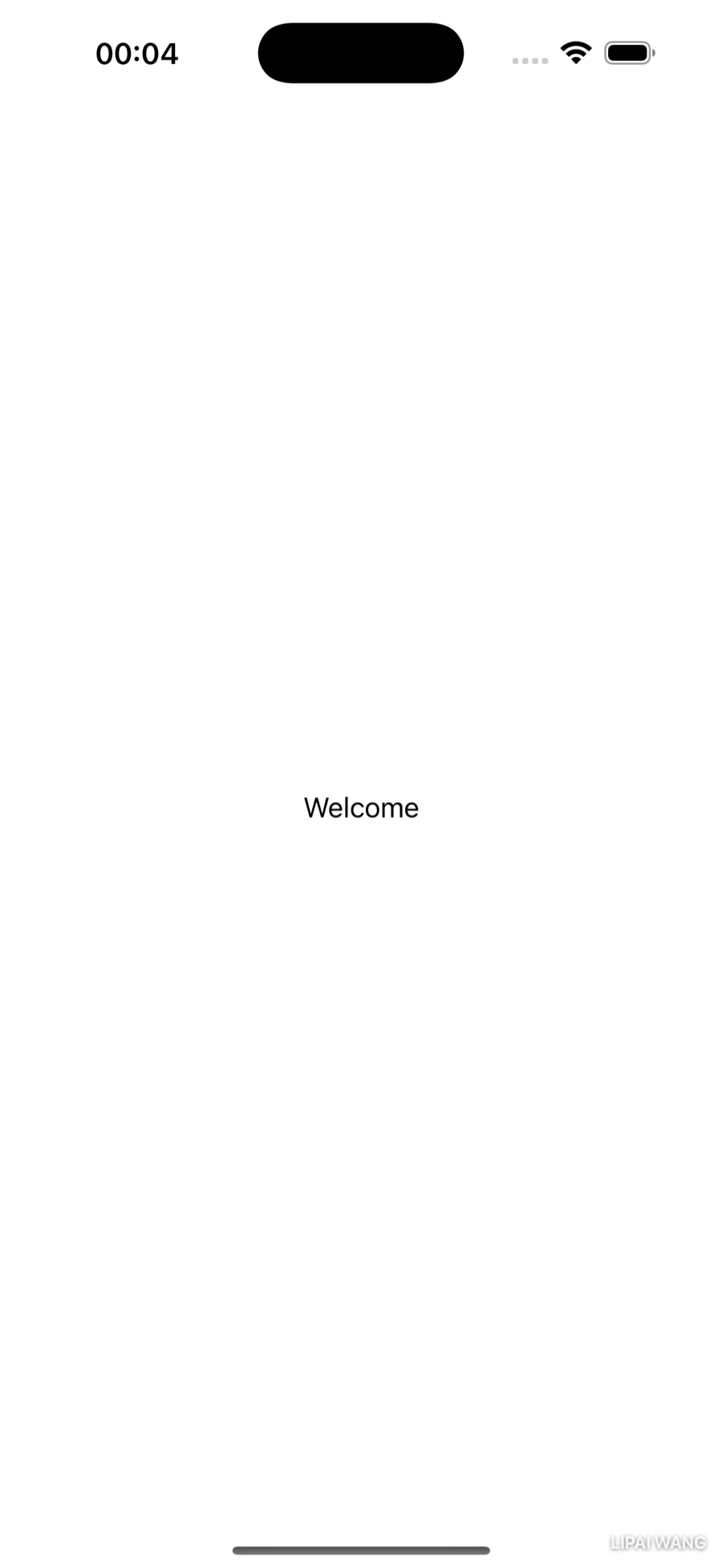
.tabViewStyle(PageTabViewStyle(indexDisplayMode: .never))This is a natural checkpoint. Commit your work with Integrate ▸ Commit… (or Option-Command-C), check all the changed files, write a message like "Set up paged tab view", and click Commit. Frequent, well-labeled commits give you safe points to return to when an experiment goes wrong.
Live Preview ContentView and swipe from page to page — Welcome, then Screenshots, Metadata, Keywords, and Final QA, each showing its own name. The paged skeleton of ShipShape is done.
Running on a Real iPhone
Live Preview is fast and convenient, but some behavior only shows up in a full build on the Simulator, and a few features — motion, the camera — only work on real hardware. Running on your own iPhone is also just satisfying. Here's the one-time setup.
Enable Developer Mode on the device
Since iOS 16, you have to opt in to running development builds. On the iPhone, open Settings ▸ Privacy & Security, scroll to Developer Mode, and turn it on. iOS warns you that this lowers the device's security, then asks you to restart. After the restart and unlock, confirm by tapping Enable and entering your passcode. You won't be asked again unless you turn Developer Mode back off.
Get a signing certificate
Apple wants to know who's responsible for every app on a device, so before you can install yours, Xcode needs to sign it with a team — an account tied to your Apple ID.
In the project editor, select the target, open the Signing & Capabilities tab, and first make the Bundle Identifier uniquely yours. The starter uses something generic like com.yourcompany.ShipShape; change the organization part to something you control, such as com.yourname.ShipShape. Then tick Automatically manage signing, confirm, and pick your account from the Team menu. After a moment Xcode shows a provisioning profile and a signing certificate it created and stored in your Mac's keychain.
A bundle identifier has to be unique across everyone signing with Apple. If you leave the default, you may collide with an identifier someone else has already signed — including the original author of a starter project. Making it yours (com.yourname.…) sidesteps that entirely.
Now connect the iPhone with an Apple cable (third-party cables sometimes won't do data), pick it from the run destination menu — it appears above the simulators — and Run. Keep the device unlocked while the app installs; you may have to enter your Mac's login password to let codesign use the keychain.
Trusting yourself
If you're not in Apple's paid Developer Program, you can still install up to three of your own apps via your Apple ID, each working for seven days. There's one extra step the first time. The app icon lands on your Home Screen, but launching it fails with an Untrusted Developer message. Open Settings ▸ General ▸ VPN & Device Management, select your developer certificate, and tap Trust, then Allow the alert. Launch ShipShape from the Home Screen and it runs.
ShipShape on the device behaves exactly like Live Preview right now — five swipeable pages with names on them. That's expected. The point of this section is the setup: from here on, running your own projects on this device is a one-click affair. (On a paid Developer Program account, even the "Trust" step is skipped — it just works.)
Challenges
Challenge 1: a fifth step
ShipShape's steps are Screenshots, Metadata, Keywords, Final QA. Add a fifth — Submit for Review. Update both arrays in StepView, and update the ForEach range so the new step actually appears. (Hint: the range's upper bound is exclusive, so think carefully about what number it should be — and consider whether hard-coding 5 is the best you can do. Look up count on Array.)
Challenge 2: name the loop variable
Rename the ForEach loop variable from index to something more descriptive for this app — step reads nicely. Make the change compile by updating every place the variable is used. Confirm the pages still show the right names in Live Preview.
Challenge 3: tabs again
Temporarily delete the .tabViewStyle modifier and add a .tabItem { Text(stepNames[index]) } to StepView (and a label to WelcomeView). Run it: you've turned the page controller back into a bottom tab bar, each tab labeled with its step name. Then undo it all — ShipShape wants pages, not tabs — and notice how little code separated the two experiences.
Key Points
- Plan before you build. List what the user sees (the screens and their contents) and what the app does (the behavior of each screen) before writing code.
- The canvas and code editor are always in sync — edit either one and the other updates. Selectable mode lets you edit views in the canvas; Live Preview lets you interact with them.
- A view is anything on screen; modifiers are methods that return tweaked copies of a view. Build big screens from small subviews, each in its own file.
VStackstacks views vertically,HStackhorizontally.VStackis the default for multi-view bodies.TabViewcan be a bottom tab bar or, with.tabViewStyle(PageTabViewStyle()), a swipeable page controller.PageTabViewStyle(indexDisplayMode: .never)hides the index dots.- A struct with no uninitialized properties gets a free default initializer (
WelcomeView()); add a stored property likelet index: Intand callers must supply it. - Arrays are ordered, same-type collections, and they count from zero.
ForEach(0 ..< 4)loops over a half-open range, building one view per value — far better than copy-pasting near-identical lines.- Option-click any symbol for Quick Help, and follow it into the Developer Documentation to learn how a type fits into the wider standard library.
- To run on a real iPhone you must enable Developer Mode on the device and add a Team to the project for a signing certificate; on a free account you also trust your developer certificate on the device the first time.
You've built ShipShape's entire paged skeleton and learned a good chunk of Xcode and SwiftUI doing it. In the next chapter you'll stop using placeholder Text and start fleshing out a real screen — laying out the Step view with images, labels, and the layout containers that make it look like an actual app.
Read next

Ultimate iOS Bootcamp: Master Swift & SwiftUI App THE HARD WAY
Ship your apps faster
When you're ready to publish your Swift app to the App Store, Simple App Shipper handles metadata, screenshots, TestFlight, and submissions — all in one place.
Try Simple App Shipper